Timedatectl: Managing System Clock Synchronisation, Configuring NTP Time Providers, and Coordinating Hardware RTC Topologies in Production
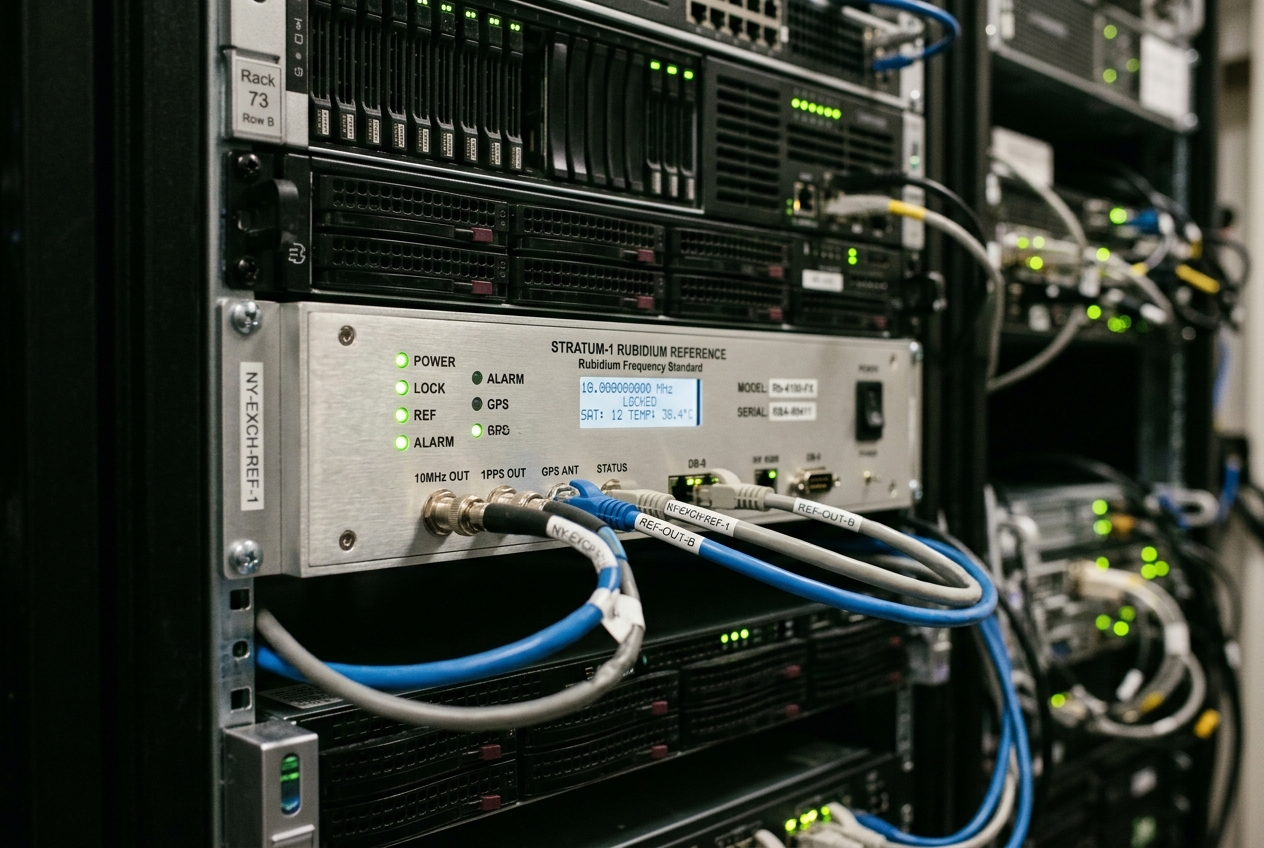
Your fingers fly across the keyboard checking the usual culprits: CPU load is practically idling at twelve percent, available memory is plentiful, disk space is wide open, and network packet loss sits at zero. Everything appears functionally healthy, yet your distributed infrastructure is tearing itself apart. The culprit is not a hardware failure or a cyberattack, but something far quieter: two servers have drifted out of sync by a fraction of a second, shattering the illusion of shared time across your network.
In computing, time is not simply a label stamped onto a log file—it is the universal baseline that distributed databases, security certificates, and consensus algorithms rely on to determine the sequence of reality. When server clocks disagree, order collapses.
The standard utility for inspecting, managing, and troubleshooting clock synchronisation across modern Linux infrastructure is timedatectl.
When an alert wakes you in the middle of the night, the single most practical command you can run to assess your system’s temporal health is a bare invocation of the tool:
timedatectl
               Local time: Wed 2026-08-19 22:02:17 UTC
           Universal time: Wed 2026-08-19 22:02:17 UTC
                 RTC time: Wed 2026-08-19 22:02:17
                Time zone: Etc/UTC (UTC, +0000)
System clock synchronized: yes
              NTP service: active
          RTC in local TZ: no
In seven clean lines, this output tells you everything you need to know: what time the operating system believes it is, whether the hardware motherboard clock agrees, which timezone rules are being applied, and whether a background network service is actively keeping the machine aligned with global atomic clocks.
What It Does in Plain English
At its heart, timedatectl is the cockpit controls for your Linux system’s sense of time.
Behind the scenes on a modern Linux machine, several independent components handle time: the motherboard's battery-backed physical hardware clock, the operating system kernel's high-speed software counters, timezone translation databases, and background synchronisation services talking to time servers across the internet. Historically, managing these required juggling a dozen disparate tools like date, hwclock, and manual symlink surgery in system directories.
timedatectl unifies all of this under a single interface. By communicating with the central system manager over system IPC (D-Bus), it gives administrators and automation scripts a safe, standardized way to set system clocks, adjust hardware clock modes, query network synchronization health, and switch timezones without corrupting the underlying operating system.
The Underlying Architecture of Linux Timekeeping
To troubleshoot time-sensitive failures effectively, it helps to understand how Linux structures its temporal layers. Time on a server is not a single ticking mechanism; it is a multi-tiered hierarchy spanning physical silicon, kernel counters, background daemons, and user-space configuration files.
1. POSIX Kernel Clocks: Wall-Clock vs Monotonic Time
The Linux kernel maintains multiple internal software clocks through the Linux Kernel Timekeeping Architecture, each tailored for specific computational needs:
CLOCK_REALTIME: Represents traditional "wall-clock" time, counted as seconds elapsed since the Unix Epoch (1970-01-01 00:00:00 UTC). This clock can be stepped forward or backward (for instance, if an administrator manually resets the time or adjusts for leap seconds) and slewed gradually via theadjtimexsystem call. Because it can jump unexpectedly, using it to calculate elapsed durations or distributed lock expiration can introduce subtle, catastrophic bugs.CLOCK_MONOTONIC: Represents strictly non-decreasing time elapsed from an arbitrary starting point (typically the moment the server booted). It cannot be stepped backwards by administrators or network time updates. It marches forward at a steady rate governed by kernel oscillators. Systems engineers and application runtimes rely onCLOCK_MONOTONICto measure latency, calculate deadlines, and prevent race conditions.CLOCK_BOOTTIME: Identical toCLOCK_MONOTONIC, but continues to increment even when the server enters low-power sleep or suspension states.CLOCK_TAI: International Atomic Time, which tracks pure atomic seconds without inserting leap seconds, offset from UTC by a fixed number of historical leap-second adjustments.
2. The Hardware Real-Time Clock (RTC) and the 11-Minute Sync Loop
The Real-Time Clock (RTC), accessible at /dev/rtc0, is a small, battery-powered chip mounted directly onto your server's motherboard. Its primary job is to remember what time it is while the server is powered off or rebooting.
When the machine powers on, the Linux kernel reads the RTC chip to seed its initial CLOCK_REALTIME. Once network synchronisation initializes, the kernel enters 11-minute sync mode. Every 660 seconds (11 minutes), provided network time is active and healthy, the kernel automatically writes its precise software clock back onto the hardware RTC registers. This prevents hardware oscillator drift from accumulating over months of server operation.
3. Timezones: Binary Zoneinfo and the /etc/localtime Contract
The Linux kernel itself has no concept of human timezones or daylight saving shifts; it operates exclusively in Universal Coordinated Time (UTC). Timezones are entirely an application-level convenience managed via the IANA Time Zone Database.
On modern distributions, the system-wide timezone is defined by /etc/localtime. This file must be a symbolic link pointing to one of the compiled timezone files inside /usr/share/zoneinfo/:
/etc/localtime -> /usr/share/zoneinfo/Etc/UTC
If /etc/localtime is accidentally replaced by a static file copy or a broken link, container runtimes, log collectors, and scheduled cron jobs will fail to resolve daylight saving transitions correctly.
4. Background Daemons: systemd-timedated and systemd-timesyncd
Changing system clocks is a privileged operation restricted by kernel capabilities (CAP_SYS_TIME). Rather than running directly with full root privileges, timedatectl sends instructions across the system D-Bus message bus to systemd-timedated.service, which performs the validated adjustments on demand.
When network synchronisation is enabled, systemd-timedated coordinates with the local NTP client. On standard installations, this is systemd-timesyncd.service, a lightweight Simple Network Time Protocol (RFC 5905 SNTP) client. On embedded boards or virtual machines lacking a physical battery-backed RTC, systemd-timesyncd continuously writes epoch timestamps to disk at /var/lib/systemd/timesync/clock to ensure the clock never accidentally rolls backward past the last known reboot.
Core Flags and Command Options
| Flag | Purpose & Operational Impact |
|---|---|
--no-ask-password |
Disables interactive authentication prompts via Polkit; essential when executing via non-interactive automation or CI/CD pipelines. |
--adjust-system-clock |
When setting the RTC mode via set-local-rtc, instructs the kernel to immediately recalculate and adjust the system clock from the RTC rather than merely writing the configuration flag. |
-H, --host=[USER@]HOST |
Executes the time configuration command remotely across an SSH transport, connecting directly to the remote host's systemd D-Bus interface. |
-M, --machine=CONTAINER |
Directs the command invocation to a local container managed under systemd-machined. |
--no-pager |
Disables automatic piping of long tabular outputs (such as list-timezones) into a pager like less. |
5 Real-World Production Use Cases
1. Auditing Cluster Time Health and NTP Synchronisation
Scenario
You are auditing a fleet of financial trading servers spread across multiple cloud regions. Strict compliance standards (such as MiFID II or FINRA) dictate that system clocks must remain tightly synchronized against reference time. You need to quickly verify that a server's kernel clock is actively synchronized, the local timezone is correct, and the hardware clock is operating under UTC standards.
Command Invocation
timedatectl status
Production Terminal Output
               Local time: Wed 2026-08-19 22:02:17 UTC
           Universal time: Wed 2026-08-19 22:02:17 UTC
                 RTC time: Wed 2026-08-19 22:02:17
                Time zone: Etc/UTC (UTC, +0000)
System clock synchronized: yes
              NTP service: active
          RTC in local TZ: no
Line-by-Line Explanation
Local time/Universal time: DisplaysWed 2026-08-19 22:02:17 UTC. Both values are identical, confirming the system's active display offset matches standard UTC.RTC time: ReportsWed 2026-08-19 22:02:17, proving the hardware CMOS clock register matches the kernel’s real-time counter.Time zone: Confirms the server is operating inEtc/UTC (UTC, +0000).System clock synchronized: yes: The definitive kernel check. It verifies that the kernel's internal unsynchronized flag is cleared and the clock is actively disciplined by a trusted time source.NTP service: active: Confirms that a background time synchronization daemon (such assystemd-timesyncd,chrony, orntpd) is actively running.RTC in local TZ: no: Confirms the hardware motherboard clock is storing time in UTC rather than a local timezone.
What the Admin Does Next
If System clock synchronized shows no or NTP service reports inactive, immediately inspect the time daemon service logs (journalctl -u systemd-timesyncd -n 50) and confirm outbound UDP port 123 traffic is not blocked by network security groups.
2. Enforcing Strict UTC Timezones Across Cloud Instances
Scenario
A server was deployed using a legacy disk image that defaulted the system timezone to America/New_York (EDT, -0400). As a result, database logs, system journals, and application metrics are arriving four hours offset from the rest of your fleet, complicating search queries during an active incident. You need to reset the server to canonical UTC immediately without restarting the host.
Command Invocation
timedatectl set-timezone UTC
Verify the setting:
timedatectl show --property=Timezone
Production Terminal Output
Timezone=UTC
Inspect the underlying system link:
ls -la /etc/localtime
lrwxrwxrwx 1 root root 27 Aug 19 22:05 /etc/localtime -> /usr/share/zoneinfo/Etc/UTC
Line-by-Line Explanation
timedatectl set-timezone UTC: Askssystemd-timedatedto atomically update/etc/localtime, pointing it cleanly to the standard UTC zoneinfo file.timedatectl show --property=Timezone: Retrieves the internal configuration property directly over D-Bus, returning a clean key-value pair ideal for automated validation scripts.ls -la /etc/localtime: Confirms the filesystem state is structurally correct—a pure symbolic link without hard file duplications.
What the Admin Does Next
Inform long-running application runtimes (such as Java JVMs, Node.js processes, or Python background workers) to refresh their cached timezone configuration, or restart the services (systemctl restart application.service) so new log messages emit with proper UTC timestamps.
3. Enabling, Disabling, and Troubleshooting Network Time Synchronization
Scenario
During a maintenance window, you are installing a high-precision enterprise Chrony time server. Before starting the new daemon, you must disable the built-in systemd-timesyncd client to avoid port conflicts and eliminate competing clock corrections. Once verified, client nodes must have network synchronization re-enabled.
Command Invocation
To disable the built-in time synchronization service:
timedatectl set-ntp false
To re-enable network time synchronization:
timedatectl set-ntp true
Query the operational status:
timedatectl show --property=NTP,NTPSynchronized
Production Terminal Output
NTP=yes
NTPSynchronized=yes
Line-by-Line Explanation
timedatectl set-ntp false: Tells systemd to stop the active time synchronization daemon (likesystemd-timesyncd) and disable the unit, preventing competing system calls to the kernel clock.timedatectl set-ntp true: Reverses the process, unmasking, enabling, and immediately starting the configured time synchronization service.NTP=yes: Confirms network time management is enabled in the host configuration.NTPSynchronized=yes: Confirms the kernel has processed valid network time packets and the clock offset is within stable operating limits.
What the Admin Does Next
If NTP=yes but NTPSynchronized=no persists after a minute, check your service journal for upstream connectivity or firewall rejections:
journalctl -u systemd-timesyncd.service -n 50 --no-pager
4. Reconfiguring Hardware RTC in UTC Mode
Scenario
A bare-metal server previously used in a legacy dual-boot test environment has its motherboard clock configured in "Local Time" mode. Because local time cannot account for daylight saving shifts when the machine is powered off, system logs are throwing stern warnings:
Warning: The system is configured to read the RTC time in the local time zone.
         This mode can break daylight saving time shifts and cause unpredictable behavior.
You need to permanently configure the hardware clock to UTC and sync it immediately with the current system time.
Command Invocation
timedatectl set-local-rtc 0 --adjust-system-clock
Verify the hardware configuration:
timedatectl status
Production Terminal Output
               Local time: Wed 2026-08-19 22:10:45 UTC
           Universal time: Wed 2026-08-19 22:10:45 UTC
                 RTC time: Wed 2026-08-19 22:10:45
                Time zone: Etc/UTC (UTC, +0000)
System clock synchronized: yes
              NTP service: active
          RTC in local TZ: no
Line-by-Line Explanation
set-local-rtc 0: Informs systemd and the Linux kernel that the hardware RTC registers must be interpreted strictly in UTC.--adjust-system-clock: An essential safety flag. It instructs the kernel to immediately harmonize the software clock and hardware registers during the switch, preventing sudden forward or backward time jumps.RTC in local TZ: no: Confirms the hardware clock is aligned with standard enterprise practices, eliminating unexpected daylight saving time shifts upon reboot.
What the Admin Does Next
Check the legacy hardware clock configuration file /etc/adjtime to verify that the third line now reads UTC:
cat /etc/adjtime
0.000000 0 0
0
UTC
5. Evaluating Network Time Telemetry: Latency, Jitter, and Stratum
Scenario
A distributed database cluster reports intermittent consensus timeouts. You suspect network packet jitter between your cloud environment and upstream time servers is causing the local clock to wobble. You need to inspect granular network time metrics—including upstream server addresses, network delay, packet jitter, and poll intervals.
Command Invocation
timedatectl timesync-status
Production Terminal Output
       Server: 169.254.169.123 (169.254.169.123)
Poll interval: 4min 16s (min: 32s; max 34min 8s)
         Leap: normal
      Version: 4
      Stratum: 3
    Reference: A0B1C2D3
    Precision: 1us (-20)
Root distance: 1.250ms (max: 5s)
       Offset: -12.418us
        Delay: 320.105us
       Jitter: 45.112us
 Packet count: 48
      Jitter : 0.045ms
Line-by-Line Explanation
Server: 169.254.169.123: The upstream time source currently serving time packets (in AWS or GCP, this is the internal cloud time reference).Poll interval: 4min 16s: How often the client queries upstream servers. The daemon automatically lengthens the interval when the clock is stable and shortens it when jitter increases.Leap: normal: Shows the leap-second warning flag;normalmeans no leap second is scheduled.Stratum: 3: How many hops removed the server is from a reference atomic clock (Stratum 0). Stratum 3 indicates high quality.Root distance: 1.250ms: The total estimated latency to the root reference clock.Offset: -12.418us: The exact time difference between your server's clock and the time server (here, an imperceptible -12.4 microseconds).Delay: 320.105us/Jitter: 45.112us: Network round-trip transit time (320 microseconds) and the variation in packet arrival time (45 microseconds).
What the Admin Does Next
If Jitter spikes into hundreds of milliseconds or Offset fluctuates wildly, update /etc/systemd/timesyncd.conf to target stable, low-latency Stratum 1 or 2 servers, then restart the service:
systemctl restart systemd-timesyncd
Common Pitfalls and Disaster Recovery
Pitfall 1: Dual-Boot / Motherboard "Local Time" Contamination
timedatectl set-local-rtc 1) introduces severe risks to production systems.When the hardware clock is set to local time, the kernel cannot know if the hardware was already adjusted for daylight saving time if the system was shut down during a transition. When the server reboots, the clock may jump backward or forward by an hour, causing corrupted database records, duplicate transaction IDs, and invalid security tokens.
Remediation and Recovery
Always ensure hardware clocks are configured in UTC:
timedatectl set-local-rtc 0 --adjust-system-clock
Pitfall 2: Conflicting Time Daemons
A classic administration mistake is installing an advanced time package like chrony or ntpd while leaving the default systemd-timesyncd service running.
When two daemons try to adjust the kernel clock simultaneously via adjtimex, they fight over the adjustment frequency, causing clock jitter and unstable time offsets.
Remediation and Recovery
Enforce a single active time service across the host:
# If using chrony as your primary time provider:
timedatectl set-ntp false
systemctl disable --now systemd-timesyncd
systemctl enable --now chronyd
Pitfall 3: Corrupted /etc/localtime Files
Some legacy shell scripts attempt to set timezones by copying raw binary files directly into /etc/localtime (e.g. cp /usr/share/zoneinfo/Europe/London /etc/localtime) or by creating broken relative links. This breaks container isolation boundaries and prevents timedatectl from managing timezone updates cleanly.
Remediation and Recovery
Clear out damaged files and let timedatectl recreate the proper symbolic link:
rm -f /etc/localtime
timedatectl set-timezone Etc/UTC
Production Automation: Cloud-Init & Ansible Deployments
In modern cloud environments, infrastructure is provisioned declaratively rather than configured by hand. Below are production-ready templates for rolling out consistent time configurations across server fleets.
1. Cloud-Init Fleet Provisioning
Include this configuration block inside your instance user-data or /etc/cloud/cloud.cfg.d/99_time_configuration.cfg:
#cloud-config
timezone: Etc/UTC

ntp:
  enabled: true
  ntp_client: systemd-timesyncd
  servers:
    - 169.254.169.123
    - 0.pool.ntp.org
    - 1.pool.ntp.org

runcmd:
  # Enforce RTC strictly in UTC mode and sync kernel state
  - [ timedatectl, set-local-rtc, "0", "--adjust-system-clock" ]
  - [ timedatectl, set-ntp, "true" ]
2. Idempotent Enterprise Playbook via Ansible
Use this Ansible task list to enforce consistent time synchronisation across your inventory:
---
- name: Enforce Enterprise Time and Clock Synchronization Architecture
  hosts: all
  become: true
  tasks:
    - name: Ensure system timezone is canonically configured to UTC
      community.general.timezone:
        name: Etc/UTC
      notify: Restart System Logging

    - name: Ensure hardware RTC is set to UTC mode
      ansible.builtin.command:
        cmd: timedatectl set-local-rtc 0 --adjust-system-clock
      changed_when: false

    - name: Configure systemd-timesyncd upstream NTP infrastructure
      ansible.builtin.ini_file:
        path: /etc/systemd/timesyncd.conf
        section: Time
        option: "{{ item.option }}"
        value: "{{ item.value }}"
        mode: '0644'
      loop:
        - { option: 'NTP', value: '169.254.169.123 time.cloudflare.com' }
        - { option: 'FallbackNTP', value: '0.pool.ntp.org 1.pool.ntp.org' }
        - { option: 'PollIntervalMinSec', value: '32' }
        - { option: 'PollIntervalMaxSec', value: '1024' }
      notify: Restart systemd-timesyncd

    - name: Ensure systemd-timesyncd is enabled and running
      ansible.builtin.systemd:
        name: systemd-timesyncd
        state: started
        enabled: true

    - name: Verify network time synchronization is active
      ansible.builtin.command:
        cmd: timedatectl set-ntp true
      changed_when: false

  handlers:
    - name: Restart systemd-timesyncd
      ansible.builtin.systemd:
        name: systemd-timesyncd
        state: restarted

    - name: Restart System Logging
      ansible.builtin.systemd:
        name: systemd-journald
        state: restarted
Authoritative Documentation & Further Reading
For deeper explorations into kernel timekeeping, network time standards, and systemd mechanics, consult these references:
- systemd
timedatectl(1)Official Manual — The primary command reference and D-Bus IPC specification. - systemd
systemd-timesyncd.service(8)Manual — Internal SNTP daemon configuration, state storage, and runtime flags. - Linux Kernel Timekeeping Documentation — Architectural details on POSIX clocks, timers, and hardware synchronization loops.
- ArchWiki: System Time and Hardware Clock Configuration — Practical administration guide covering hardware RTC modes and network time daemons.
- IETF RFC 5905: Network Time Protocol Version 4 — The engineering standard governing NTP protocol packet structures, clock filters, and stratum hierarchies.
Today's Takeaway
Open your terminal right now and type timedatectl timesync-status (or timedatectl if you are running Chrony). Look directly at the System clock synchronized and Offset lines. If your server is not synchronized or your offset has drifted beyond a few milliseconds, your infrastructure is accumulating silent risk. Taking five minutes to verify your clocks today ensures that the next midnight consensus failure never happens.