Bootctl: Querying EFI Bootloader States, Managing Systemd-Boot Partitions, and Enforcing Secure Boot Hierarchies in Production
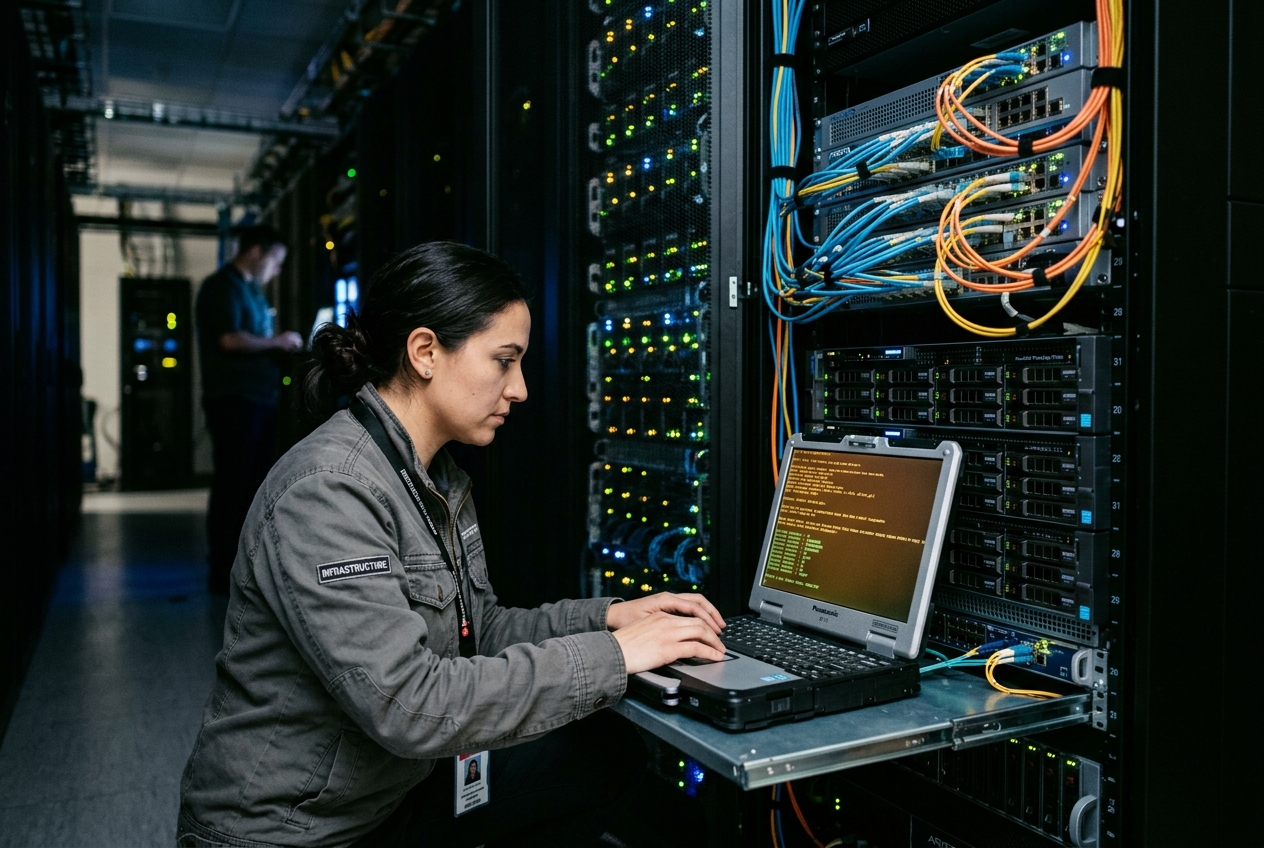
Every modern server and personal computer relies on a delicate handoff between physical silicon and the operating system. For decades, Linux systems entrusted this critical first second of life to sprawling, opaque configuration scripts that felt more like dark magic than dependable engineering. When something broke, diagnosing the failure often meant guessing in the dark.
The modern solution to this fragile arrangement is bootctl, the built-in control utility for systemd's EFI boot architecture. Rather than treating startup as an unreadable black box, bootctl provides a transparent, scriptable window into how modern computers initialise themselves, giving administrators direct oversight of motherboard settings, security keys, and operating system kernels.
If you want to know the complete health and security posture of your machine's boot process, you do not need to reboot into complex setup menus. You only need a single command:
sudo bootctl status
Running this command produces an immediate, comprehensive summary of the machine's initialization chain:
System:
      Firmware: UEFI 2.70 (Lenovo 0.4770)
 Firmware Caps: Secure Boot
                TPM2 Support
                Boot Order Configuration
                Driver Order Configuration
  Secure Boot: enabled (user)
  TPM2 Support: yes
  Boot into FW: supported

Current Boot Loader:
      Product: systemd-boot 255.4-1-arch
     Features: ✓ Boot Loader Specification
               ✓ Boot Loader Interface
               ✓ Type #1 Token Support
               ✓ Type #2 Unified Kernel Images
               ✓ Automatic Reboot into Firmware Setup
          ESP: /dev/disk/by-partuuid/c3b1a234-91d8-4f7e-b2d9-a4112e75e921
         File: /EFI/systemd/systemd-bootx64.efi

Random Seed:
 Systemd-boot: yes
 /loader/random-seed: yes

Default Boot Loader Entry:
        title: Production Linux 6.6.12-1-lts (Active Kernel)
           id: 2024-01-15_production-linux-6.6.12.conf
       source: /boot/loader/entries/2024-01-15_production-linux-6.6.12.conf
        linux: /vmlinuz-linux-lts
       initrd: /initramfs-linux-lts.img
      options: root=UUID=8f7e2c14-d021-4f77-9a8c-a114092b11e2 rw quiet loglevel=3
In a single screen, you learn whether your hardware security features are active, which disk partition houses the boot files, and precisely which operating system kernel will execute when the power button is pressed.
(BootOrder, BootNext, LoaderEntryOneShot)"] SecBoot["Validate Cryptographic Signatures
(PK, KEK, db, dbx)"] end subgraph Systemd_Boot["2. systemd-boot Loader (/EFI/systemd/systemd-bootx64.efi)"] TPM["Measure Payloads into TPM2 (PCR 4, 8)"] Parse["Evaluate Boot Loader Entries"] end subgraph Targets["3. Boot Targets"] BLS1["BLS Type 1: /loader/entries/*.conf
Separate Kernel & Ramdisk Files"] BLS2["BLS Type 2: /EFI/Linux/*.efi
Unified Kernel Image (UKI)"] end subgraph Kernel["4. Operating System"] OS["Linux Kernel Initializes systemd (PID 1)
Mounts Root Filesystem"] end UEFI_Firmware --> Systemd_Boot Systemd_Boot --> BLS1 Systemd_Boot --> BLS2 BLS1 --> Kernel BLS2 --> Kernel
1. What It Does in Plain English
Think of modern computer startup as a relay race. When you turn on a computer, the motherboard's built-in firmware (UEFI) wakes up first. It checks the hardware, verifies security credentials, and hands a baton to a bootloader program stored on a dedicated FAT32 drive partition called the EFI System Partition (ESP). That bootloader then loads the Linux operating system kernel into memory and starts the rest of the software.
Historically, Linux bootloaders like GRUB relied on large, complicated configuration scripts that generated code on raw disk sectors. If a script miscalculated, the computer became unbootable.
bootctl manages systemd-boot, a minimalist alternative designed around clarity and simplicity. Instead of giant scripts, systemd-boot reads simple, standalone text files that define each available operating system. bootctl is the dashboard and steering wheel for this mechanism: from the safety of a running Linux terminal, administrators can inspect hardware security flags, switch default kernels, install updates to the bootloader, and test experimental upgrades with automatic safety nets.
2. Core Flags & Quick Start
Mastering bootctl starts with understanding its primary subcommands and operational flags. The table below outlines the essential invocations used in daily administration:
| Command / Flag | Operational Scope | Canonical Purpose |
|---|---|---|
bootctl status |
Global Telemetry | Emits comprehensive audit data regarding firmware, Secure Boot status, ESP location, and loaded bootloader versions. |
bootctl list |
Entry Enumeration | Queries and parses all discovered Boot Loader Specification (BLS) Type #1 and Type #2 configuration targets. |
bootctl install |
ESP Initialisation | Copies the systemd-boot binary to the ESP and registers an entry in the system's UEFI NVRAM boot table. |
bootctl update |
Non-Destructive Patch | Updates existing systemd-boot EFI binaries on the ESP to match the OS systemd version without altering NVRAM variables. |
bootctl set-default <ID> |
Target Selection | Designates the persistent default kernel or UKI target evaluated during system initialization. |
bootctl set-oneshot <ID> |
Safe Validation | Instructs the bootloader to execute the designated target exclusively on the immediate subsequent reboot, falling back automatically thereafter. |
--esp-path=<PATH> |
Partition Override | Explicitly specifies the filesystem mount path for the EFI System Partition (overriding automated detection at /efi, /boot, or /boot/efi). |
--no-variables |
Environment Isolation | Suppresses all UEFI NVRAM modifications; indispensable when provisioning immutable operating system images inside isolated chroot or container environments. |
3. Five Real-World Production Use Cases
Use Case 1: Fleet-Wide Cryptographic and Firmware Auditing
Scenario
During a security compliance audit across three thousand bare-metal enterprise servers, auditors require verifiable proof that every machine enforces hardware Secure Boot, registers cryptographic measurements into a Trusted Platform Module (TPM2), and mounts its boot files from the correct physical disk partition.
Command Invocation
sudo bootctl --esp-path=/efi status
Realistic Terminal Output
System:
      Firmware: UEFI 2.80 (American Megatrends 5.19)
 Firmware Caps: Secure Boot
                TPM2 Support
                Boot Order Configuration
                Driver Order Configuration
  Secure Boot: enabled (user)
  TPM2 Support: yes
  Boot into FW: supported

Current Boot Loader:
      Product: systemd-boot 255.2-1.el9
     Features: ✓ Boot Loader Specification
               ✓ Boot Loader Interface
               ✓ Type #1 Token Support
               ✓ Type #2 Unified Kernel Images
               ✓ Random Seed Protection
          ESP: /dev/disk/by-partuuid/d8b2e35a-7140-4cb6-bb50-13f59e66ab92
         File: /EFI/SYSTEMD/SYSTEMD-BOOTX64.EFI

Boot Loaders Listed in EFI Variables:
        Title: Linux Boot Manager
           ID: 0x0001
       Status: active, selected
    Partition: /dev/disk/by-partuuid/d8b2e35a-7140-4cb6-bb50-13f59e66ab92
         File: /EFI/SYSTEMD/SYSTEMD-BOOTX64.EFI

        Title: UEFI Hard Drive
           ID: 0x0002
       Status: active
    Partition: /dev/disk/by-partuuid/d8b2e35a-7140-4cb6-bb50-13f59e66ab92
         File: /EFI/BOOT/BOOTX64.EFI
Line-by-Line Technical Analysis
Firmware: UEFI 2.80 (American Megatrends 5.19): Verifies the underlying motherboard firmware version, ensuring compatibility with modern security specifications and memory protection standards.Secure Boot: enabled (user): Confirms that cryptographic signature enforcement is active and using custom enterprise security certificates ("user" mode) rather than unconfigured factory defaults.TPM2 Support: yes: Demonstrates that the system can record cryptographic hashes of loaded boot files into hardware security registers for remote attestation.Features: ✓ Boot Loader Specification ... Type #2 Unified Kernel Images: Confirms that the active bootloader supports both modular configuration files and tamper-resistant monolithic kernel binaries.Boot Loaders Listed in EFI Variables: Displays the motherboard's stored boot options.Status: active, selectedverifies that theLinux Boot Managerholds first priority in the motherboard's startup queue.
What the Sysadmin Does Next
The administrator integrates this command into automated compliance scripts. If any server reports Secure Boot as disabled or setup, the management system automatically isolates that node from the production cluster and schedules it for certificate provisioning before sensitive customer workloads can run.
Use Case 2: Zero-Downtime Provisioning and Non-Destructive Upgrades
Scenario
A platform team is building an automated system image inside an isolated continuous integration container. The build process needs to install the bootloader onto a newly formatted virtual disk without accidentally altering the physical build server's own motherboard memory. Once the image is deployed to live servers, the team needs to safely upgrade bootloader files during routine maintenance.
Command Invocations
# Step 1: Install bootloader into target image without touching host motherboard NVRAM
sudo bootctl --esp-path=/mnt/target-node/efi --no-variables install

# Step 2: Perform in-place upgrade on running live host
sudo bootctl --esp-path=/efi update
Realistic Terminal Output (Installation Step)
Created "/mnt/target-node/efi/EFI/systemd".
Created "/mnt/target-node/efi/EFI/BOOT".
Created "/mnt/target-node/efi/loader".
Created "/mnt/target-node/efi/loader/entries".
Copied "/usr/lib/systemd/boot/efi/systemd-bootx64.efi" to "/mnt/target-node/efi/EFI/systemd/systemd-bootx64.efi".
Copied "/usr/lib/systemd/boot/efi/systemd-bootx64.efi" to "/mnt/target-node/efi/EFI/BOOT/BOOTX64.EFI".
Random seed file /mnt/target-node/efi/loader/random-seed successfully written (512 bytes).
Not installing EFI variable entry: requested by --no-variables.
Realistic Terminal Output (Update Step)
Skipping "/efi/EFI/systemd/systemd-bootx64.efi", same version (systemd-boot 255.4-1-arch).
Skipping "/efi/EFI/BOOT/BOOTX64.EFI", same version (systemd-boot 255.4-1-arch).
Updated "/efi/loader/random-seed" with fresh entropy from kernel pool.
Line-by-Line Technical Analysis
Created "/mnt/target-node/efi/EFI/systemd": Creates the standard directory structure on the target disk according to official EFI specifications.Copied ".../systemd-bootx64.efi" to ".../EFI/BOOT/BOOTX64.EFI": Establishes the standard fallback bootloader path specified in the UEFI Specification. If motherboard memory is ever reset or erased, the hardware will automatically locate and run this fallback file.Random seed file ... successfully written (512 bytes): Writes an entropy seed to disk, ensuring cryptographic services on the new system have access to secure randomness from the very first millisecond of boot.Not installing EFI variable entry: requested by --no-variables: Honors the safety flag by skipping motherboard memory writes, protecting the build host from unintended configuration changes.Skipping ... same version: When running updates on live systems,bootctlcompares cryptographic checksums and avoids redundant writes to solid-state storage unless an actual software upgrade is present.
What the Sysadmin Does Next
For disk image builds, the engineer unmounts the virtual filesystem and packages it for deployment. For live servers, the team links bootctl update to system package manager triggers, ensuring bootloader binaries are systematically updated whenever systemd packages are patched.
Use Case 3: Managing Boot Loader Specification (BLS) Entries and Target Selection
Scenario
A critical database server has received an urgent security patch to protect against a processor vulnerability. Three separate Linux kernels are now installed on the system: a standard Long Term Support (LTS) kernel, a legacy fallback kernel, and the new hardened security kernel. The administrator must list all available kernels, verify their startup options, and configure the hardened kernel as the persistent default.
Command Invocations
# Step 1: List all discovered kernel entries
sudo bootctl list

# Step 2: Set the hardened kernel as the persistent default
sudo bootctl set-default 2024-01-20_linux-hardened-6.6.13.conf
Realistic Terminal Output
Type #1 Boot Loader Specification Entries:
         title: Linux Hardened Enterprise 6.6.13 (Target Deployment)
            id: 2024-01-20_linux-hardened-6.6.13.conf
        source: /efi/loader/entries/2024-01-20_linux-hardened-6.6.13.conf
         linux: /efi/vmlinuz-linux-hardened
        initrd: /efi/initramfs-linux-hardened.img
       options: root=UUID=5f3d4b2e-0012-4c91-b9a2-9e8c147102b3 ro console=tty0 console=ttyS0,115200n8 slab_nomerge slub_debug=FZP init_on_alloc=1 pti=on

         title: Linux Production LTS 6.1.75 (Previous Stable)
            id: 2023-12-10_linux-lts-6.1.75.conf
        source: /efi/loader/entries/2023-12-10_linux-lts-6.1.75.conf
         linux: /efi/vmlinuz-linux-lts
        initrd: /efi/initramfs-linux-lts.img
       options: root=UUID=5f3d4b2e-0012-4c91-b9a2-9e8c147102b3 ro console=tty0 console=ttyS0,115200n8

Default Boot Loader Entry:
         title: Linux Hardened Enterprise 6.6.13 (Target Deployment)
            id: 2024-01-20_linux-hardened-6.6.13.conf
Line-by-Line Technical Analysis
Type #1 Boot Loader Specification Entries: Indicates that modular configuration files conforming to the BLS Type #1 Specification were found in the standard/loader/entries/directory.id: 2024-01-20_linux-hardened-6.6.13.conf: The unique identifier for this kernel entry, derived directly from its filename on disk.options: ... slab_nomerge slub_debug=FZP init_on_alloc=1 pti=on: Displays the exact command-line arguments that will be passed to the kernel, allowing verification of memory hardening flags before rebooting.bootctl set-default <id>: Updates the bootloader configuration to point permanently to the specified entry ID for all subsequent system boots.
What the Sysadmin Does Next
The administrator confirms that remote serial console access parameters (console=ttyS0,115200n8) are present in the kernel options so remote management remains functional. With configuration verified, the server is scheduled for an orderly reboot into the patched kernel.
Use Case 4: Orchestrating Resilient Single-Boot Kernel Upgrades via set-oneshot
Scenario
Deploying a major operating system kernel upgrade to remote edge servers in regional branch offices carries a major risk: if the new kernel fails to initialize disk controllers or encounters a crash loop, the machine will fail to boot, requiring an expensive on-site technician visit. The operations team needs a zero-risk testing procedure that runs the new kernel exactly once, automatically returning to the known-good kernel if anything goes wrong.
bootctl set-oneshot & reboot"] --> B["System Boots into Trial Kernel"] B --> C["systemd-boot Clears One-Shot NVRAM Flag"] C --> D["Early-Boot Health-Check Service Runs"] D -->|Health Checks Pass| E["Make Kernel Persistent
bootctl set-default
Command Invocations
# Step 1: Arm the bootloader for a single-shot execution of the experimental kernel
sudo bootctl set-oneshot 2024-01-25_linux-next-6.7.1.conf

# Step 2: Verify that the one-shot target is active in firmware memory
sudo bootctl status | grep -A 4 "One-shot"

# Step 3: Trigger system reboot
sudo systemctl reboot
Realistic Terminal Output
Default Boot Loader Entry:
        title: Production Linux 6.6.12-1-lts (Active Kernel)
           id: 2024-01-15_production-linux-6.6.12.conf

One-shot Boot Loader Entry:
        title: Experimental Linux 6.7.1-rc1 (Trial Validation)
           id: 2024-01-25_linux-next-6.7.1.conf
       source: /efi/loader/entries/2024-01-25_linux-next-6.7.1.conf
        linux: /efi/vmlinuz-linux-next
       initrd: /efi/initramfs-linux-next.img
Line-by-Line Technical Analysis
set-oneshot 2024-01-25_linux-next-6.7.1.conf: Stores a temporary instruction in motherboard NVRAM telling the bootloader to load this specific kernel on the very next boot cycle only.Default Boot Loader Entry: ... 2024-01-15_production-linux-6.6.12.conf: Confirms that the permanent default configuration remains untouched and safe.One-shot Boot Loader Entry: ... 2024-01-25_linux-next-6.7.1.conf: Verifies that the experimental kernel is armed for the immediate reboot.- Automatic Failback Mechanism: When the computer starts,
systemd-booterases the one-shot flag from motherboard memory before handing control to the new kernel. If the trial kernel panics, locks up, or triggers a hardware watchdog reset, the subsequent reboot will automatically load the reliable default kernel without human intervention.
What the Sysadmin Does Next
The engineer pairs this feature with an automated startup health-check service. If the new kernel boots successfully and passes all network, storage, and application checks, the service runs bootctl set-default to make the upgrade permanent. If checks fail or the server crashes, the system reboots straight back to the previous stable release.
Use Case 5: Inspecting Unified Kernel Images (UKI) and Cryptographic TPM2 Registers
Scenario
To guard against physical tampering and evil maid attacks, an enterprise security team has migrated systems from separate kernel and initial ramdisk files to Unified Kernel Images (UKI) (BLS Type #2). An engineer must verify that the monolithic kernel binary is correctly loaded, check that its cryptographic hash is measured by the hardware TPM2 chip, and confirm adequate partition storage.
Command Invocations
# Step 1: Enumerate Unified Kernel Image entries
sudo bootctl --esp-path=/efi list

# Step 2: Audit hardware TPM measurements and partition storage
sudo bootctl status
Realistic Terminal Output
Type #2 Unified Kernel Image Entries:
         title: Enterprise CoreOS (Production UKI v2)
            id: coreos-2024.01.28-x86_64.efi
        source: /efi/EFI/Linux/coreos-2024.01.28-x86_64.efi
        linux: /efi/EFI/Linux/coreos-2024.01.28-x86_64.efi
      unified: yes
       kernel: 6.6.14-enterprise-uki
      initrd: embedded (48.2 MB)
      cmdline: root=LABEL=COREOS_ROOT rw console=ttyS0 quiet splash
   os-release: NAME="Enterprise CoreOS" VERSION="2024.1" ID=coreos
    tpm2-pcr: 11 (measured by systemd-stub)

Current Boot Loader:
      Product: systemd-boot 255.4-1-arch
     Features: ✓ Type #2 Unified Kernel Images
               ✓ TPM2 PCR Measurements (PCR 4, 8, 9, 11)
          ESP: /dev/nvme0n1p1 (/efi)
        Space: 842.1M left / 1.0G total (84% available)
Line-by-Line Technical Analysis
Type #2 Unified Kernel Image Entries: Confirms detection of self-contained executable images in the/EFI/Linux/directory.unified: yes: Verifies that the Linux kernel, initial ramdisk, startup command line, and OS identity are bundled into a single digitally signed binary.initrd: embedded (48.2 MB): Proves that the ramdisk is sealed inside the binary, meaning it cannot be modified on disk without breaking the digital signature.tpm2-pcr: 11 (measured by systemd-stub): Shows that the embedded stub loader calculates a cryptographic hash of the entire image and records it into TPM2 register 11 before booting.Space: 842.1M left / 1.0G total (84% available): Audits available space on the EFI partition. Because UKI binaries bundle the entire operating system kernel and ramdisk together, keeping track of partition capacity is essential to prevent disk exhaustion during updates.
What the Sysadmin Does Next
The engineer binds full-disk encryption unlocking keys stored inside the server's TPM2 chip directly to register 11. If an attacker attempts to modify startup parameters, substitute a modified ramdisk, or tamper with the binary, the cryptographic measurement changes, the TPM2 refuses to unlock the storage drive, and confidential data remains secure.
4. What Can Go Wrong: Architectural Pitfalls and Recovery
Working with low-level firmware and boot partitions requires care. When things go wrong, issues generally fall into one of three common categories:
| Failure Mode | Primary Diagnostic Symptom | Recovery & Remediation |
|---|---|---|
| ESP Mount Divergence | "ESP partition not found" or silent failure to receive updates | Validate /etc/fstab UUIDs; enforce explicit --esp-path=/efi parameter |
| NVRAM Storage Exhaustion | "No space left on device" when updating boot variables | Prune orphaned boot records using efibootmgr and remove stale crash dumps |
| Secure Boot Signature Rejection | "Access Denied" or security violation screen during boot | Sign custom binaries with enterprise keys using sbsign or temporarily enable Audit Mode |
1. The Disconnected Boot Partition
- The Danger: Different Linux distributions mount the EFI partition in different locations: some use
/boot/efi, others/boot, while modern standards favor/efi. If package managers write newly installed kernels to/bootwhile the motherboard reads from an unmounted partition at/efi, the machine will silently boot older, unpatched software without displaying any errors. - Remedy: Always verify partition paths with
bootctl status. In deployment scripts, never assume the default location; explicitly provide the--esp-path=/efiflag. Ensure/etc/fstabmounts the boot partition by its persistent filesystem UUID rather than dynamic device names like/dev/sda1.
2. Motherboard Memory (NVRAM) Exhaustion
- The Danger: Enterprise servers that undergo frequent provisioning cycles often accumulate hundreds of dead, orphaned boot entries in motherboard memory. Many motherboards allocate only 64KB to 128KB of space for these variables. When full, running
bootctl installorbootctl set-defaultwill fail with cryptic error messages likeNo space left on device. - Remedy: Clean up stale motherboard entries using
efibootmgr: ```bash # View all registered boot entries sudo efibootmgr -v
Remove an orphaned boot entry (e.g. entry 0004)
sudo efibootmgr -b 0004 -B
Clear stale firmware crash dumps
sudo rm -f /sys/firmware/efi/efivars/dump-*
``
  When building images in virtual containers, always supply the
--no-variables` flag to avoid writing dummy entries to the host machine.
3. Secure Boot Signature Failures
- The Danger: If you build a custom kernel or install a new distribution without registering the digital signing certificate in your system's Secure Boot database, the motherboard firmware will halt startup with an
Access Deniederror. - Remedy: If a machine fails to boot after an update, connect via out-of-band management console, enter the firmware setup screen, and temporarily switch Secure Boot to
Audit Mode. Once the system boots, sign the binary with your enterprise certificate usingsbsign: ```bash # Verify current signature sudo sbverify --list /efi/EFI/Linux/coreos-2024.01.28-x86_64.efi
Sign the image with enterprise private key
sudo sbsign --key /etc/secureboot/db.key \
--cert /etc/secureboot/db.crt \
--output /efi/EFI/Linux/coreos-2024.01.28-x86_64.efi \
/efi/EFI/Linux/coreos-2024.01.28-x86_64.efi
``
  Verify the signature with
bootctl status` before re-enabling full Secure Boot enforcement.
5. Architectural Reference: Legacy GRUB2 vs Modern systemd-boot
To see how modern boot architecture compares to traditional approaches, consider the differences between legacy GRUB2 and the modern systemd-boot / bootctl workflow:
| Architectural Dimension | Legacy GRUB2 Paradigm | Modern systemd-boot & bootctl Paradigm |
|---|---|---|
| Configuration Model | Monolithic, procedural script (grub.cfg) parsed at startup by an embedded interpreter. |
Simple, declarative text files (*.conf) conforming to the Boot Loader Specification. |
| Firmware Interaction | Complex multi-stage bootloader with custom filesystem drivers built into the loader. | Minimalist EFI application delegating hardware and disk access directly to motherboard firmware. |
| Unified Kernel Images | Awkward integration; requires manual separation of kernel and ramdisk components. | Native, first-class BLS Type #2 UKI support bundling kernel, ramdisk, and signatures in one binary. |
| Failback Orchestration | Relies on stateful environment files written to disk filesystems during startup. | Native motherboard NVRAM variables (LoaderEntryOneShot) managed safely via bootctl set-oneshot. |
| Cryptographic Integrity | Multi-step validation chains (Shim to GRUB to Kernel) with larger overall attack surface. | Streamlined direct hardware verification (UEFI to systemd-stub to Kernel) with TPM2 PCR measurement. |
| Fleet Management | Distribution-specific configuration scripts and wrappers (update-grub, grub2-mkconfig). |
Standardized, cross-distribution administrative interface via upstream bootctl. |
6. Today's Takeaway
The Linux boot process no longer needs to be an opaque mystery. Take five minutes right now to open a terminal on your Linux machine and run sudo bootctl status. Look closely at the results: check how much free space remains on your EFI partition, verify whether Secure Boot is actively protecting your system or idling in setup mode, and inspect your configured boot options with sudo bootctl list. Understanding this foundational layer of your system turns one of the most critical steps in computing into something transparent, predictable, and fully under your control.